How to use the Virtual Fares feature
20 July 2026
The Virtual Fares feature in Chrono lets you purchase transit fares directly from your phone. This way, you can travel using your phone instead of needing a physical transit card (such as an OPUS card or occasional smart card) to buy or validate passes. This feature will be phased rolled out on the Chrono app and is only available for Android. See how to use this feature.
Selecting the purchase option
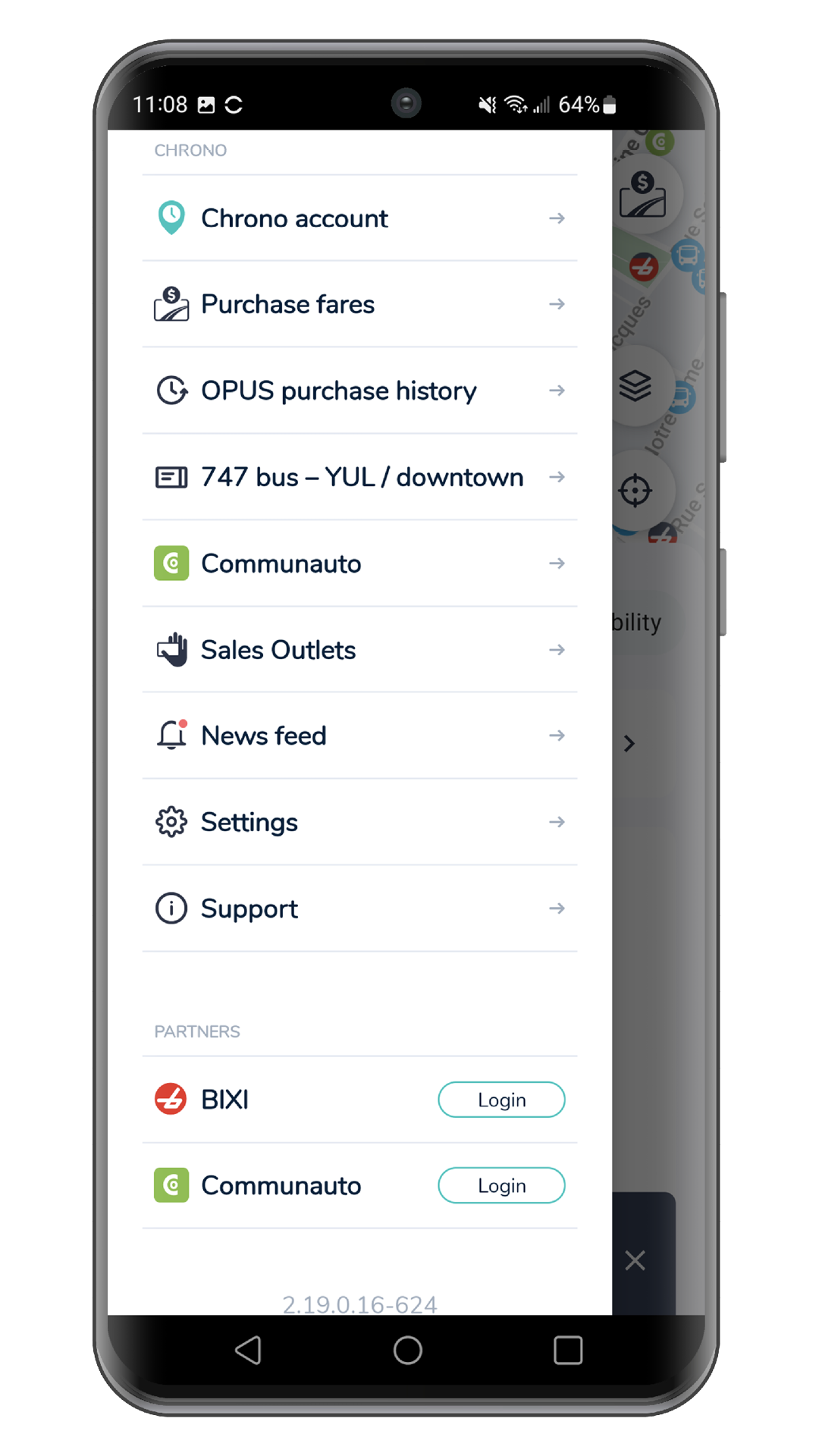
Open the main menu and select Purchase Fares to access the Virtual Fares feature.
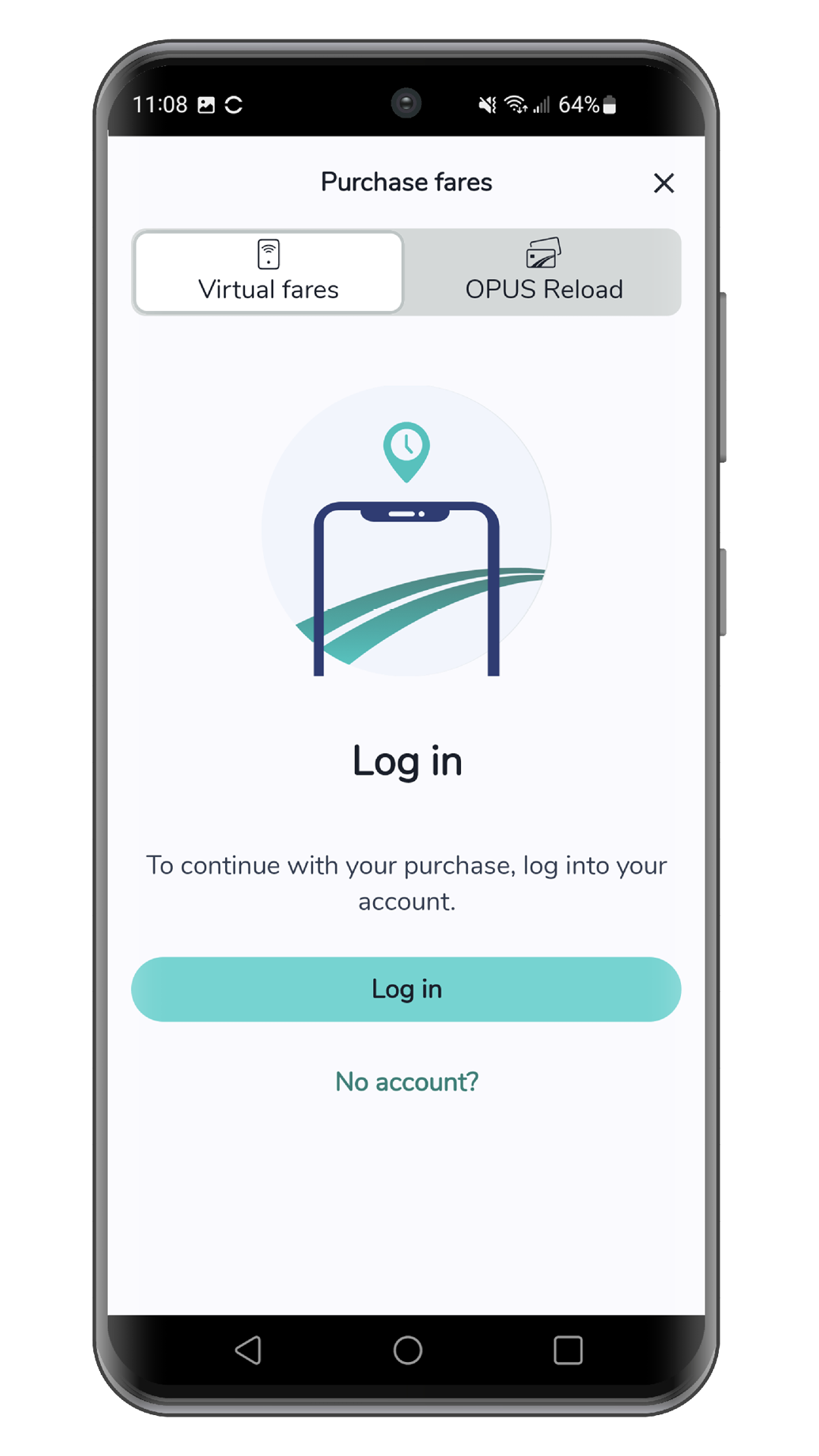
Select Virtual Fares and then Sign In.
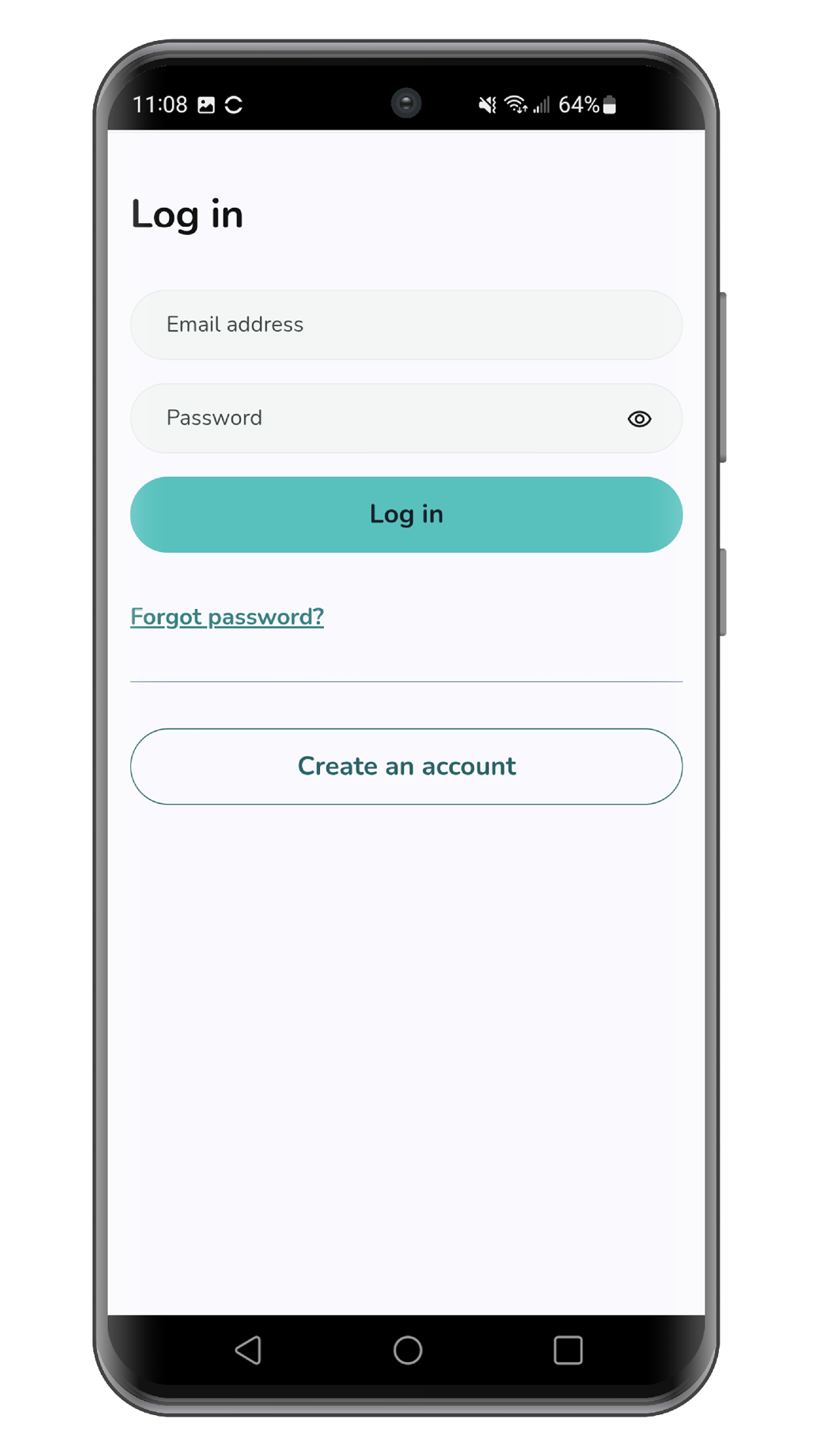
Sign in to your account or create an account to continue.
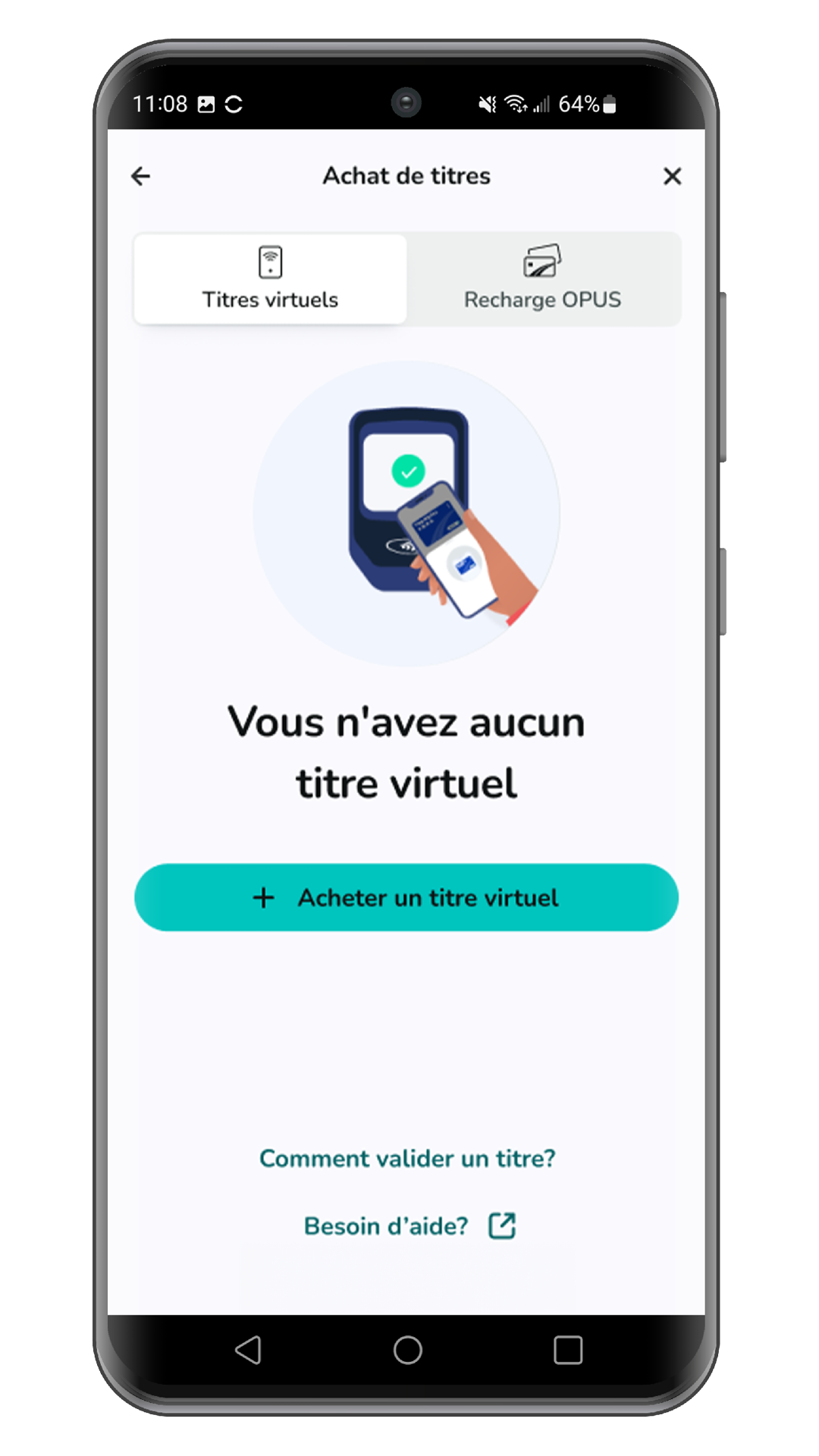
Select Purchase Virtual Fare.
Choosing the right transit fare
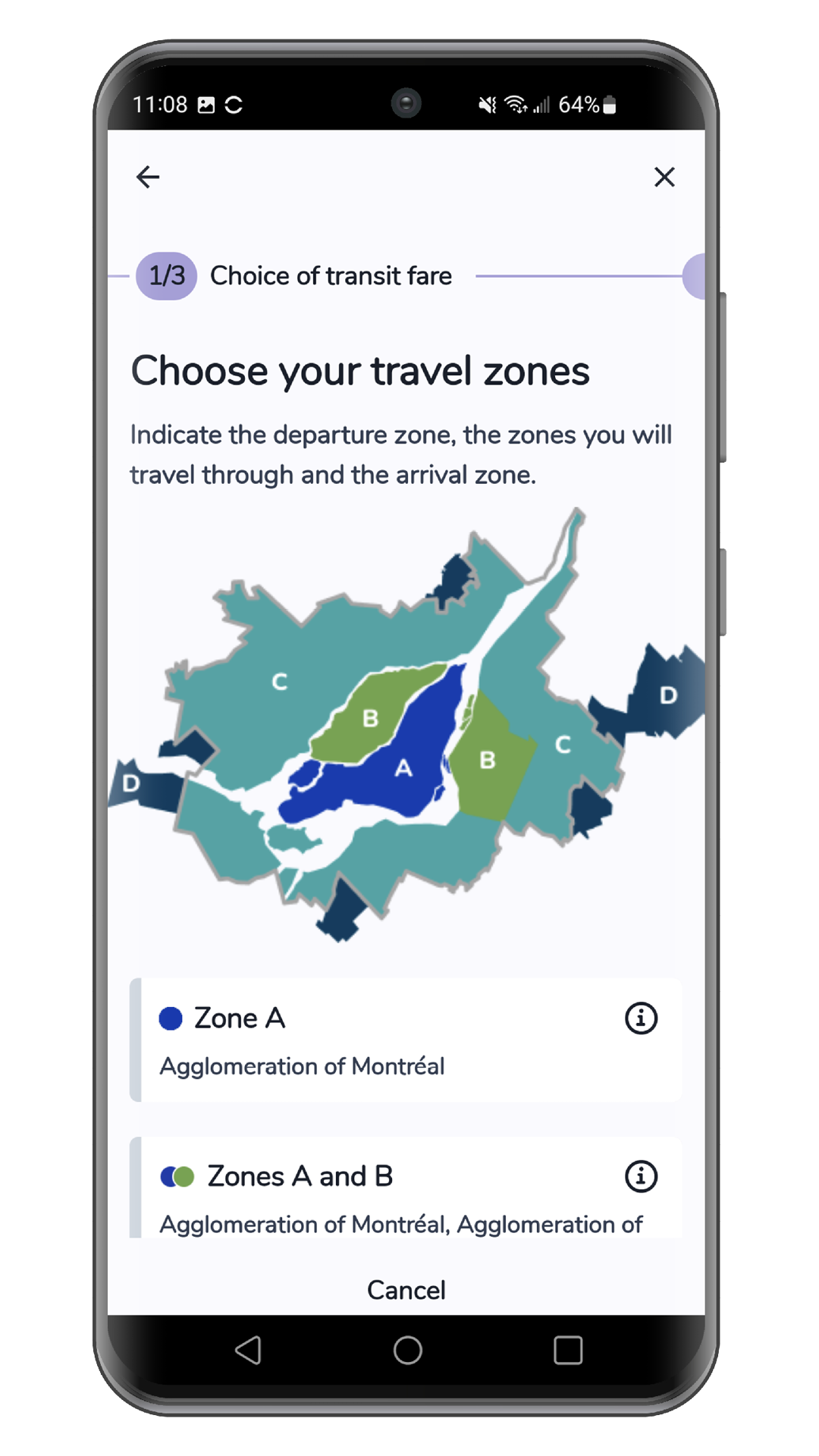
Select the zone(s) you’ll be passing through during your trip.
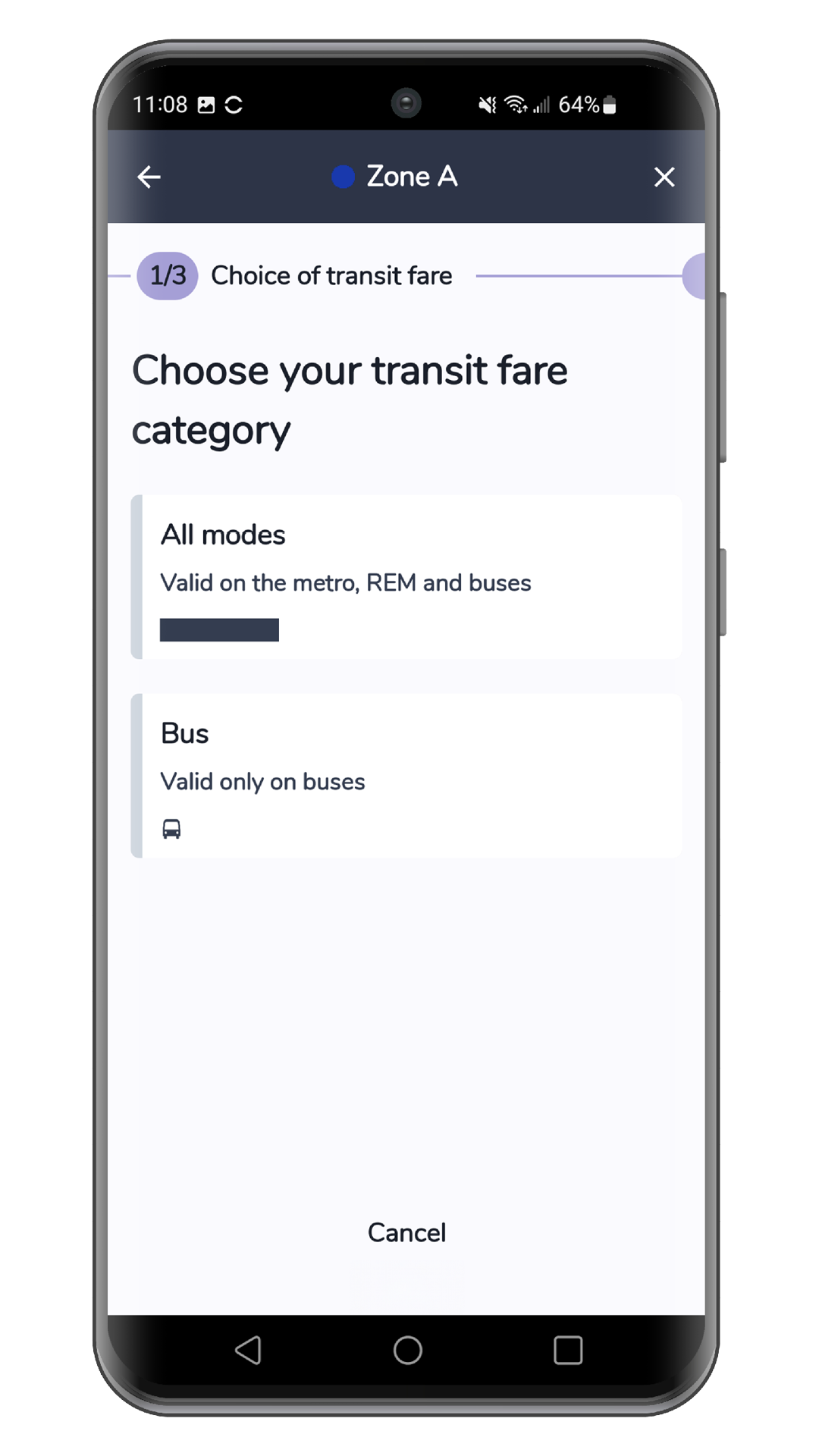
Select the mode of transportation (All Modes, Bus).
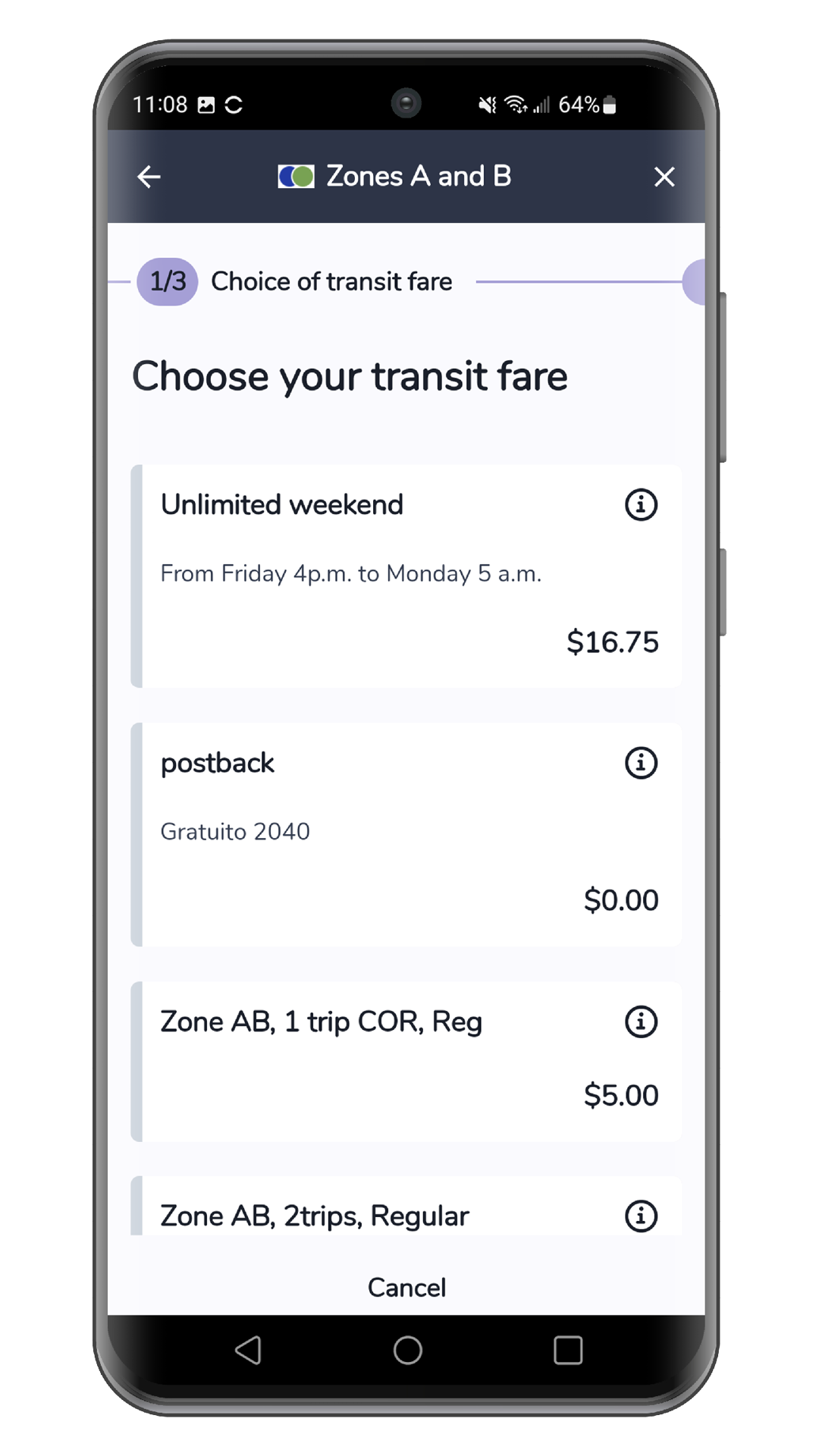
Select the fare you want to purchase and press Next.
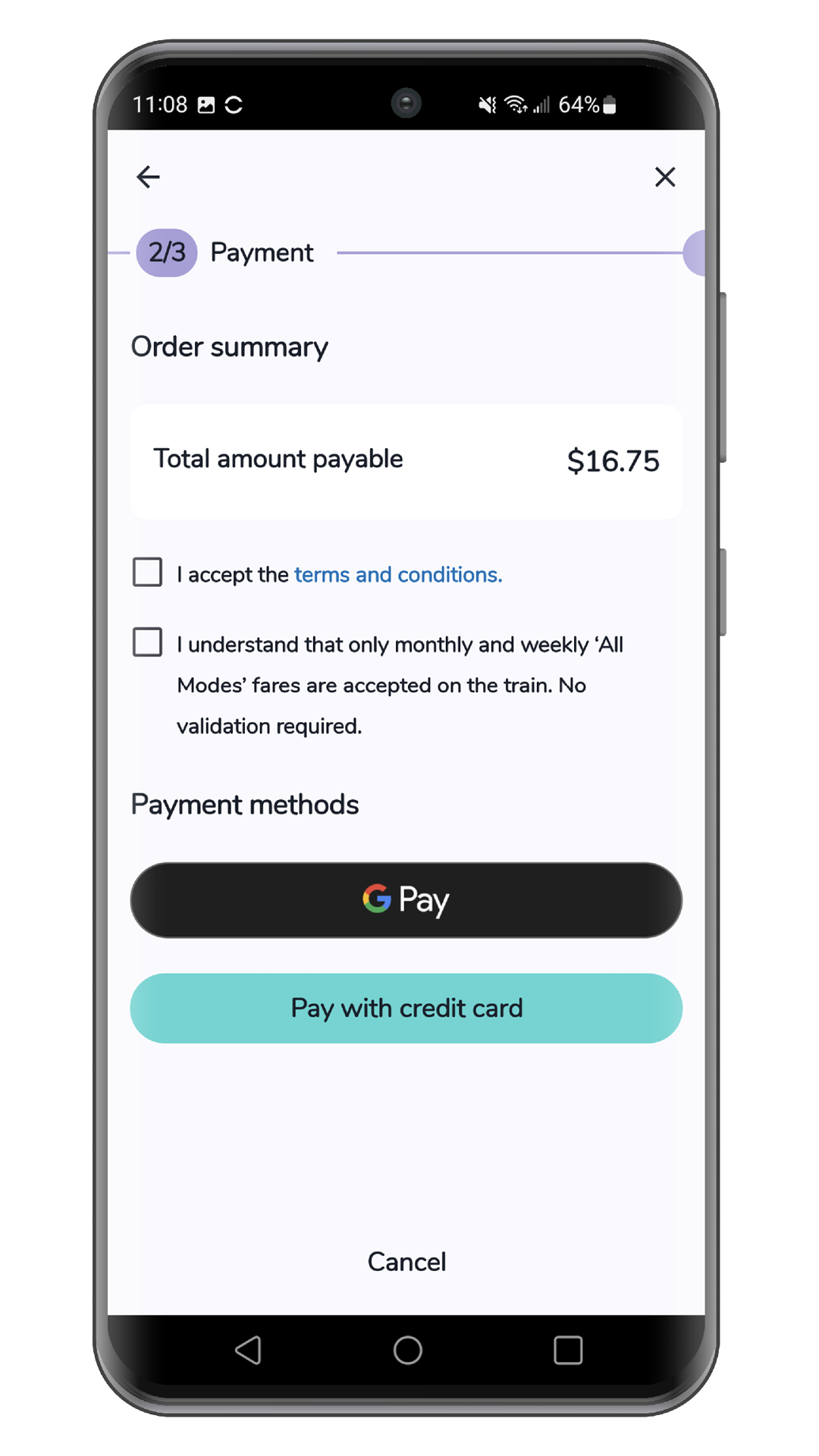
Payment/Purchase
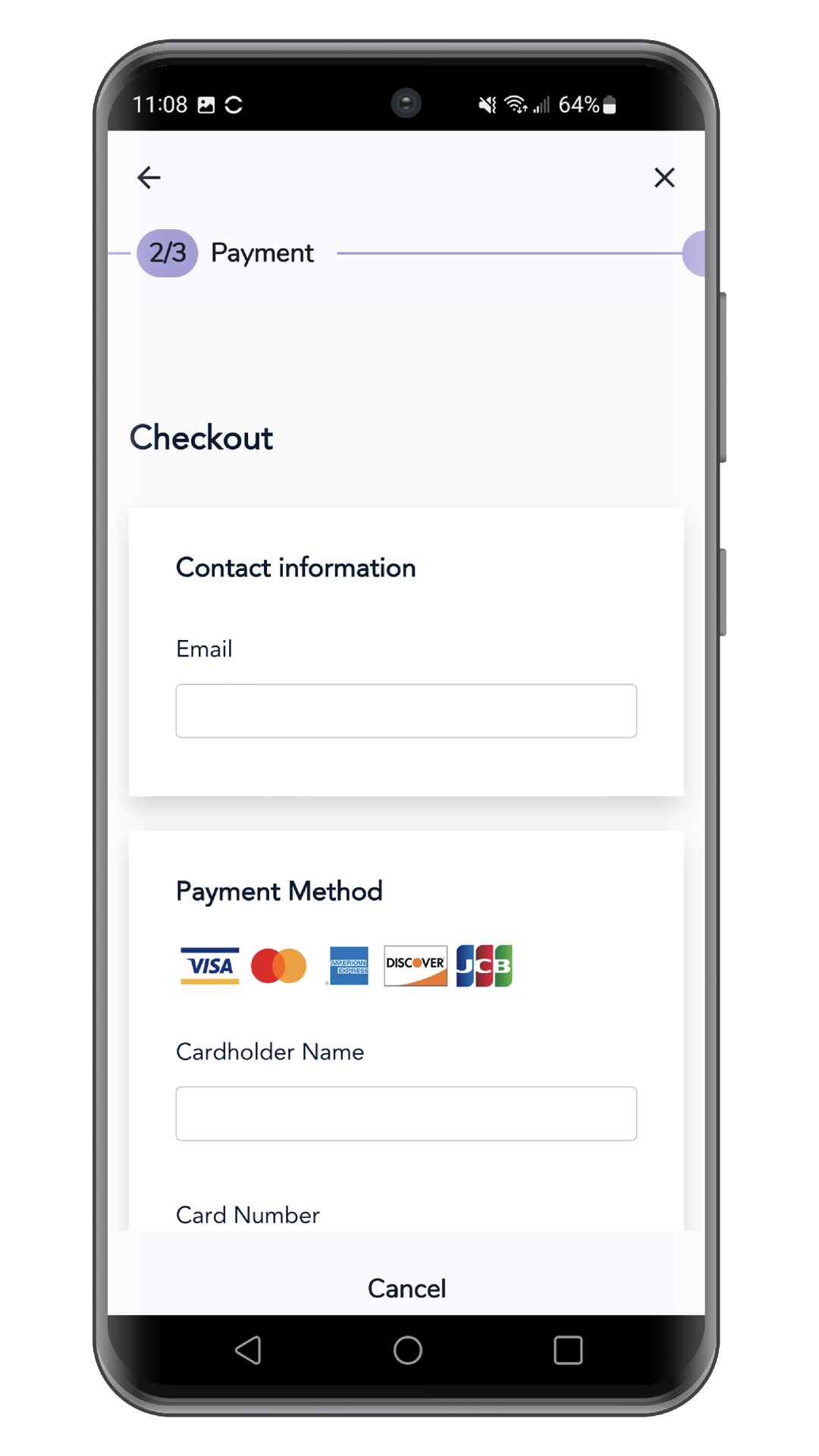
Select your preferred payment method. You can pay by credit card (Mastercard or Visa) or via Google Pay.
Fill out the form. Once you’ve filled it out, press Pay.
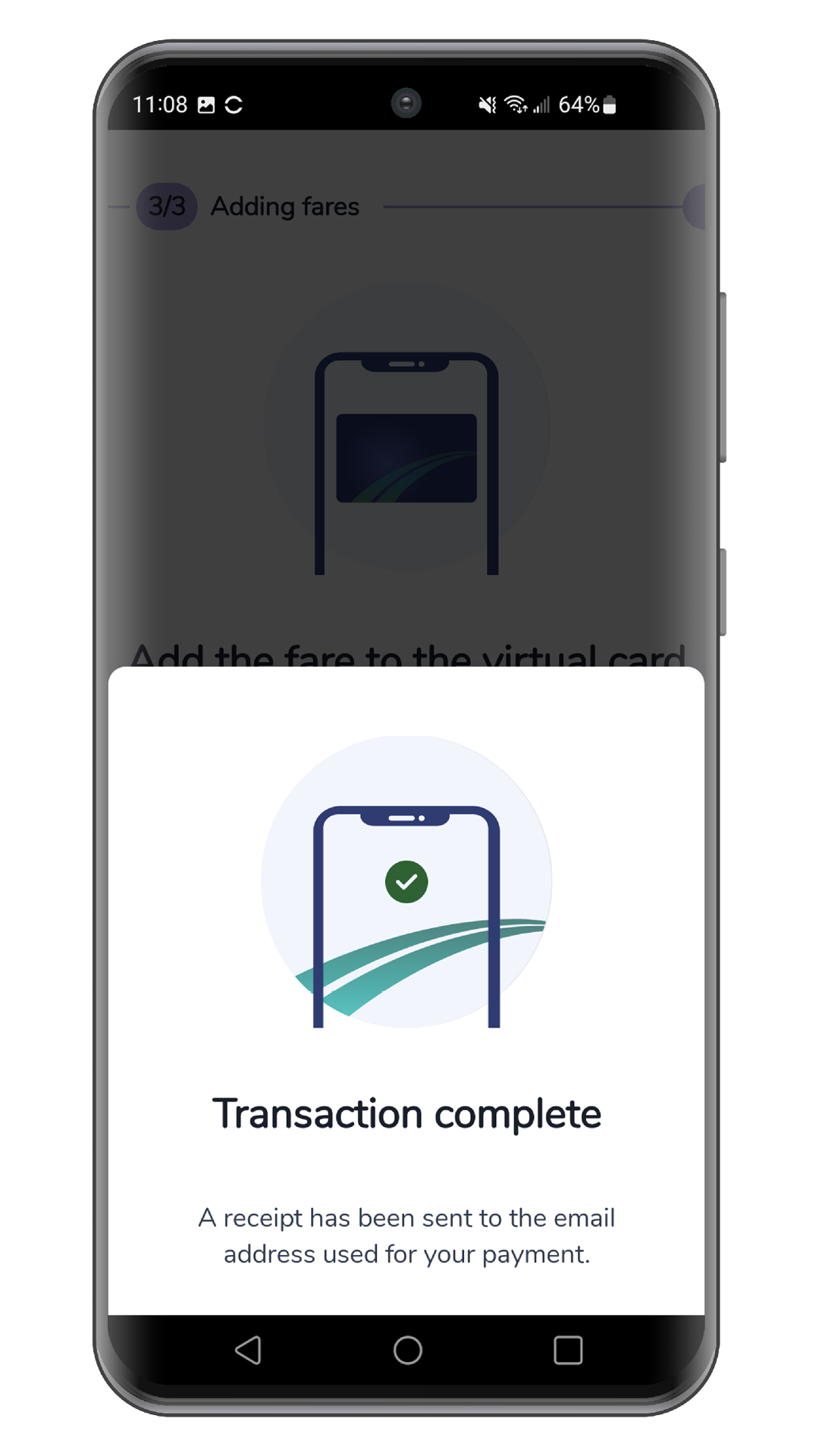
A transaction confirmation will appear. A copy of your sales receipt will be sent to the email address provided in form.
Helpful tip
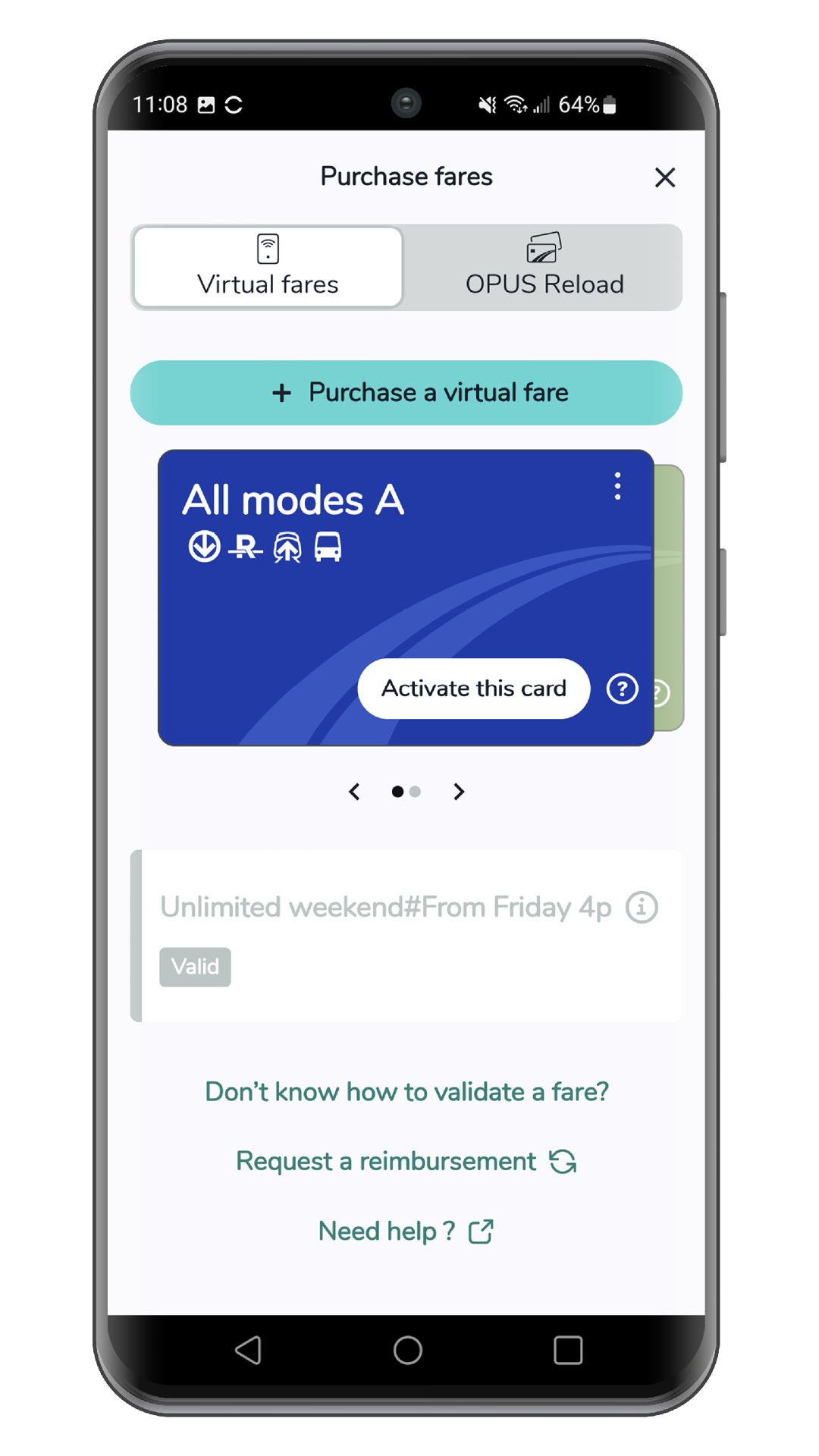
Before validating your pass, make sure to select the correct card with the fare you want to use for your trip.
Validating your pass
Make sure your virtual card is activated and ready for use. If you purchased a single fare, your virtual card is activated by default. If you have purchased several different fares, select the card you want to activate by going to the Virtual Fares section in the Chrono app.
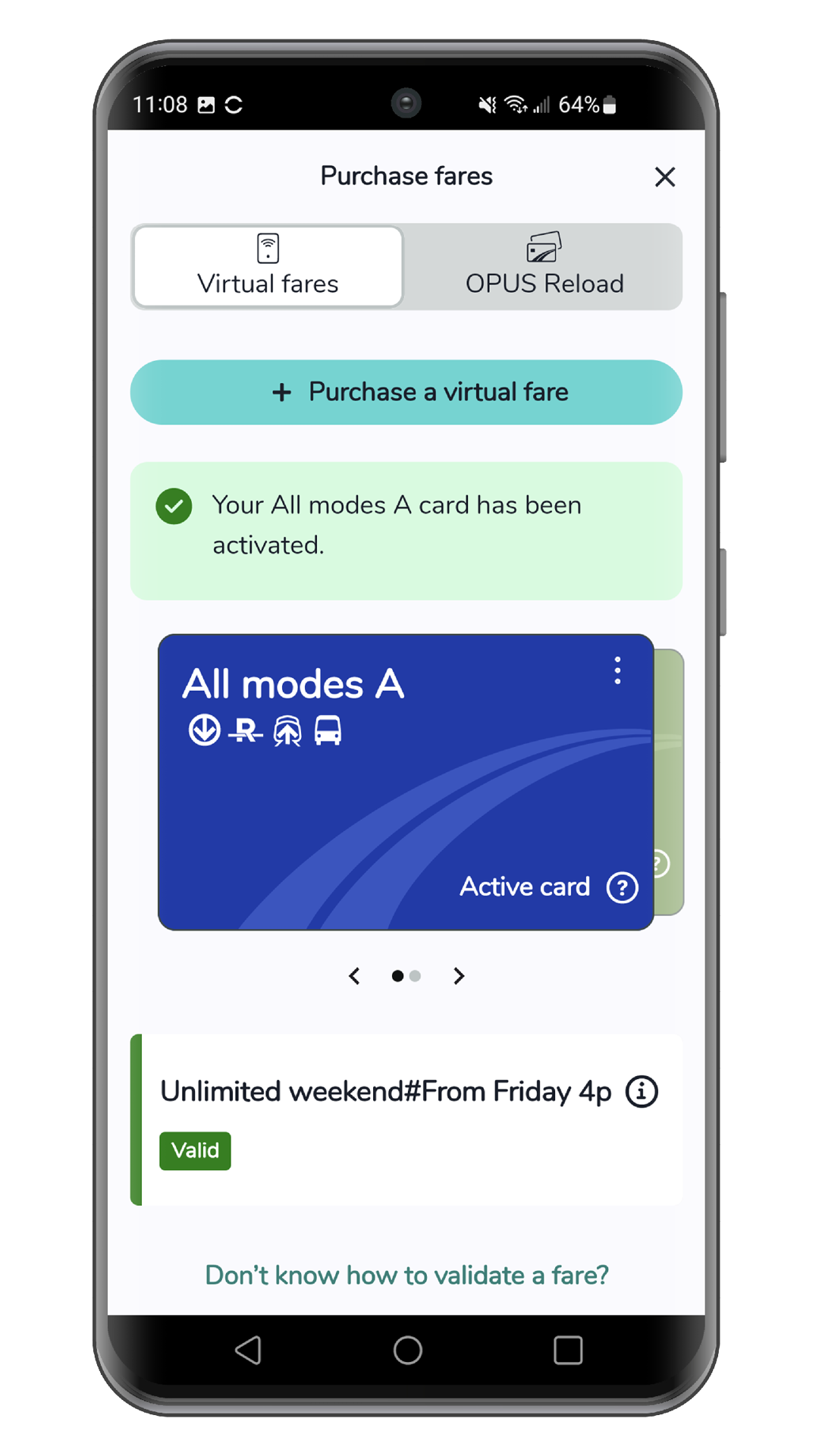
Tap your phone to the validator, as you do with an OPUS card.
Share


Even more!
How to transfer and retrieve your virtual fares on another Android device
20 July 2026
Protect your virtual fares when switching devices, resetting your device, or uninstalling and reinstalling the Chrono app by following these steps:
How to use the OPUS Reload feature
10 April 2024
This feature lets you consult the contents of your OPUS or occasional smart card, and purchase new fares for your OPUS. See how to use [...]
How to use the OPUS reading feature
16 October 2023
This feature allows you to view the contents of your OPUS card or non-refillable smart card. See how to use this feature.